SlowDen › Blog › Block websites on Windows 11
How to block websites on Windows 11 while studying: 4 free ways, and what each one can't do
there are four free ways to block websites on Windows 11 while studying. A browser extension such as LeechBlock NG blocks any site you list, but only in that browser. The hosts file blocks a site in every browser, but needs admin rights and stays on until you edit it. Microsoft Family Safety filters sites in Microsoft Edge, set by a parent. A focus app such as SeaSweep closes distracting tabs (and apps) only while a study session runs, then gives everything back.
This article was written with the assistance of an AI writing program and checked against Microsoft Support, the LeechBlock site and SeaSweep's source code on 25 November 2026.
I build SeaSweep, so I have a stake in this. I'll say plainly where each of the other three is the better choice.
1. A browser extension: best for a custom list of sites
LeechBlock NG describes itself as "a simple free productivity tool". You list the sites, choose when they're blocked, and the extension does the rest inside the browser.
The catch: it lives in one browser. Open another browser, or a desktop app like Discord, and it can't see you.
2. The hosts file: best for one site you never want to see
Windows reads a plain-text file at C:\Windows\System32\drivers\etc\hosts before it looks a name up. Point a site at 0.0.0.0 and no browser can reach it:
0.0.0.0 www.example-distraction.comThe catch: you need an administrator account to edit it (open Notepad as administrator), it blocks websites only, not apps, and it's always on until you edit the file again. It's a wall, not a study session.
3. Microsoft Family Safety: best when a parent sets the rules
Microsoft Family Safety lets a parent add a child's Microsoft account to a family group, then filter websites in Microsoft Edge and set limits on apps and games.
The catch: it's designed around a parent and a child account. It isn't built for a student who wants to block their own distractions for 45 minutes and then have them back.
4. A focus app: best for blocking your own distractions for one session
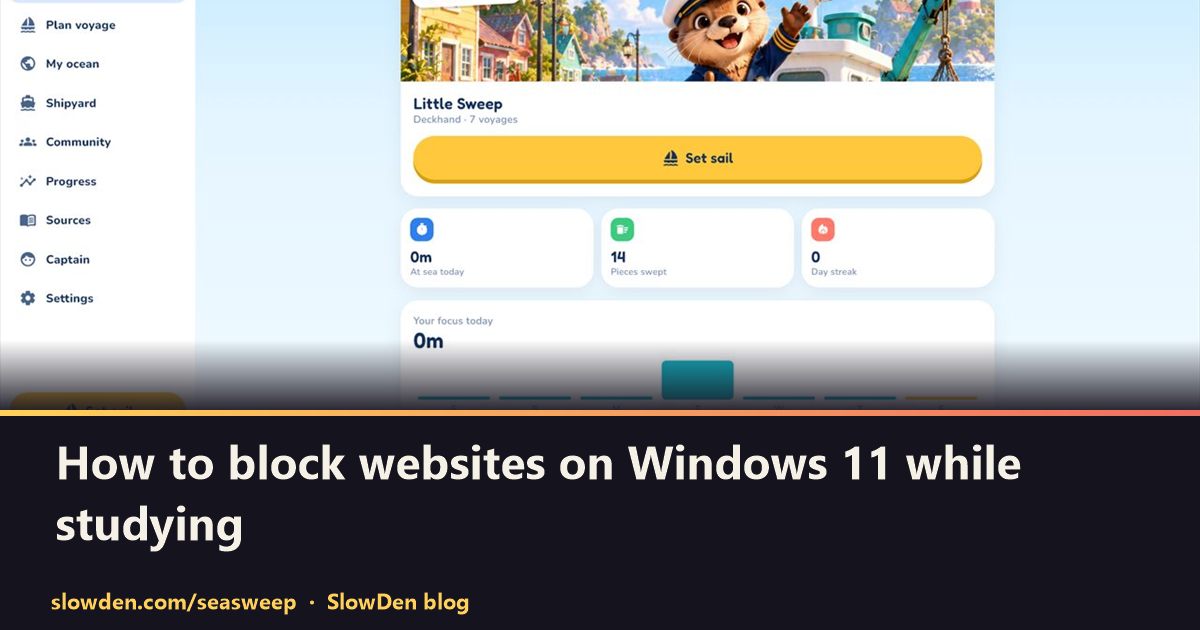
This is where SeaSweep sits. You pick a study session from 5 minutes to 3 hours. While it runs, SeaSweep checks the window in front every 0.7 seconds:
- an Instagram, YouTube or Snapchat tab, or a Poki, CrazyGames or Roblox site from its Games group, gets a lock screen and the tab is closed, in Chrome, Edge, Firefox, Brave, Opera, Vivaldi and Arc;
- docked desktop apps (Discord, WhatsApp, Steam, Spotify, Netflix and others) get closed the same way;
- study sites stay open even if you docked the whole browser: Wikipedia, Khan Academy, BBC Bitesize, DuckDuckGo and r/studying are exempt.
When the session ends, nothing is blocked any more.
The catch: SeaSweep blocks a fixed list of websites. You can't add your own yet, so for a site that isn't on it, use an extension or the hosts file. It also has no pause button, by design: pick a shorter session if you're not sure.
Which way should you block websites while studying?
| You want to... | Use |
|---|---|
| Block a long custom list of sites, in one browser | A browser extension (LeechBlock NG) |
| Never see one site again on this PC | The hosts file |
| Set limits for your child | Microsoft Family Safety |
| Block YouTube, Instagram and game sites (and Discord) only while you study | A focus app such as SeaSweep |
If the distraction is games rather than websites (Steam, Roblox, Minecraft), there is a separate guide: how to block games on Windows while studying.
Does Windows 11 have a built-in website blocker?
Not for blocking your own distractions. Windows 11's Focus feature in the Clock app turns on do not disturb and hides notifications, but Microsoft's own page describes no website or app blocking. The hosts file is built in, but it's a manual, always-on block.
Prefer the command line? In Windows Terminal: winget install 9N3F281GJT5T -s msstore
Get it: SeaSweep on the Microsoft Store (Store ID 9N3F281GJT5T). More: slowden.com/seasweep. Study break? Free browser games from the same founder at slowden.com. SeaSweep is made by a 5 Gyres Ambassador. @5gyres #5GyresAmbassador
Common questions
How do I block websites on Windows 11 for free?
Use a free browser extension like LeechBlock NG, edit the hosts file as an administrator, or use a free focus app like SeaSweep, which closes YouTube, Instagram, Snapchat and some game sites during a study session.
Can I block websites on Windows 11 without an extension?
Yes. The hosts file blocks a site in every browser, and SeaSweep closes listed sites' tabs without any extension.
How do I block YouTube but keep study sites open?
SeaSweep closes YouTube tabs during a session while Wikipedia, Khan Academy, BBC Bitesize, DuckDuckGo and r/studying stay open.
Can I unblock a website early?
In SeaSweep, no: sessions can't be paused or stopped. With an extension or the hosts file, yes, which is exactly why they're easier to cheat on.
Is SeaSweep free?
Yes. It's free on the Microsoft Store with no ads.
Browse the games
All 2961 free browser games on SlowDen — no download, no sign-up.